Some questions are faster to ask than to type, especially when you are between two calls, standing up, or halfway through something else. Press a key, ask, and Azynote answers out loud.
It knows what the chat knows: your sessions, OnePagers and tasks. And each exchange lands in the chat history, so you can read it back later.
To type with your voice instead, see Dictation.
Have a conversation#
- Press Ctrl Shift V from any app and ask your question.
- Press Enter. Azynote answers in two or three sentences, starting to speak while it is still working out the rest.
- It is your turn: press Enter to reply, as many times as you like.
- Press Esc when you are done.
A few things to ask:
- "What did I commit to in the Northwind call?"
- "Who owes me what this week?"
- "Remind me what Marie said about the pilot."
- "Summarise my last session with the platform team."
Answers are short on purpose, because long ones are hard to follow by ear. When you want more, just say so: "tell me more about the second point."
A small pill at the top of the screen shows where you are, and what each key does there:
| When the pill says... | Press | To |
|---|---|---|
| Listening | Enter | Send what you said |
| Thinking or Speaking | Enter | Cut it off and say something else |
| Your turn | Enter | Reply |
| Anything | Esc | End the conversation |
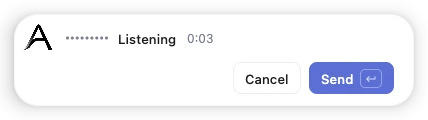
While a conversation is going, Enter and Esc belong to it in every app. That is why a turn you do not take ends the conversation on its own after 30 seconds, and hands the keys back.
The microphone in the chat window starts the same conversation, if you would rather click.
Choose who answers, and how#
Open Settings, then AI engines, and pick a choice on the Voice row. The presets set it for you, replacing your current choice: Gemini picks Live with Gemini, OpenAI picks Live with OpenAI (or Turn by turn with a compatible server), Full Local and ACP pick Turn by turn, and CLI picks Off. The line under the row always says who hears you, who answers, and what leaves your Mac.
The row is one dropdown with four choices, set per workspace, from everything on your Mac to everything with one provider:
- Live with Gemini or Live with OpenAI: talk freely in the chat window and interrupt whenever you like. The provider hears you and answers aloud, so your voice streams to Google or OpenAI.
- Turn by turn: Whisper listens on your Mac, you press Enter, the engine on the Chat row answers, and a voice reads the answer. This is the pill described above. Because the same engine answers typed messages, a question you speak and a question you type are one conversation: the answer to a spoken question knows what you typed before, and the other way round.
- Off: no voice conversation. Dictation still works.
Turn by turn is only offered when Chat is on. If Chat is off, the row says "Chat is off, so nothing answers. Turn Chat on above."
Live with OpenAI needs OpenAI itself: it is only offered when OpenAI is selected under Providers, not a compatible server such as Ollama or LM Studio. If you switch to a compatible server after choosing it, voice does not quietly change to something else. The row says "Live OpenAI needs OpenAI itself, not a compatible server." Pick another choice to continue.
With ACP, your agent may ask permission before using a tool. When it does during a conversation, the chat window comes forward so you can answer.
Pick the voices#
With Turn by turn, Replies read by under the Voice row chooses who reads the answers, whatever engine wrote them:
- macOS voices: read on your Mac, with a voice per language (below).
- OpenAI voice: one of OpenAI's voices, such as Marin or Cedar, which read every language. Needs OpenAI set up with its API key. Press play to hear a voice before you pick it.
In a live conversation with OpenAI, the same OpenAI voice answers you. Gemini's live voice is chosen on the Gemini provider page.
macOS voices#
Out of the box, every answer is read by your Mac's system voice, the one set in macOS System Settings, Accessibility, Spoken Content. That is usually the best-sounding choice, and it is the only way to have a Siri voice read your answers: macOS does not let apps pick Siri voices by name, only use the one you set there.
A system voice speaks one language, though. If you work in several, give each of the others a voice of its own:
- Add a language, for example French, and pick a voice for it. Azynote works out the language of every sentence it says, so an answer that switches from English to French switches voice with it.
- Other languages is the voice for any language without its own. It starts as the system voice.
- Press the play button next to any choice to hear it before you pick it.
For better-sounding voices in the lists, choose Manage Voices in Spoken Content and download an Enhanced or Premium voice. They appear in Azynote's lists by their full name, such as "Samantha (Enhanced)", the next time you open Settings. A plain "Samantha" is the compact version, which is why it can sound flatter than the same name in System Settings.
If a voice you picked is later removed from your Mac, Settings marks it not installed and answers use the voice for other languages until you choose again.
Faster answers#
How quickly Azynote starts talking depends mostly on the engine that writes the answer. With the local model, the very first answer can take a moment while the model loads. Turn on Keep the chat model ready in Settings, AI engines to have it loaded as soon as Azynote starts. Live conversations answer fastest, since the provider hears and speaks without a round trip through text.
Privacy#
You decide how much leaves your Mac, and the line under the Voice row says it for your current choices:
- Turn by turn: what you say is transcribed on your Mac and the audio is deleted as soon as it has been transcribed. Only the words of your question reach the engine on your Chat row, as a typed message would. With Chat on Local and macOS voices, nothing leaves your Mac at all. With an OpenAI voice, the text of each answer also goes to OpenAI to be read aloud.
- Live: your voice streams to Google or OpenAI while the conversation is open, because that is what lets them hear you and answer as you speak.
Meeting transcription is not affected by any of this: it always runs on your Mac.
If something goes wrong#
- The pill says Voice is off. Pick a choice on the Voice row in Settings, AI engines.
- The pill says the engine is not set up yet. For Turn by turn, the engine on your Chat row needs setting up first, for example downloading the local model or configuring your ACP agent. For Live, set up Gemini or add your OpenAI API key.
- The pill says Turn by turn is answered by Chat, which is off. Turn Chat on in Settings, AI engines.
- The pill says Live OpenAI needs OpenAI itself. A compatible server is selected under Providers. Select OpenAI, or pick Turn by turn on the Voice row.
- The pill says replies need your OpenAI API key. Answers are set to be read by an OpenAI voice. Add your key under Providers, OpenAI, or switch Replies read by to macOS voices.
- A live conversation keeps interrupting itself. Laptop speakers can let the microphone hear the answer. Use headphones, or switch the Voice row to Turn by turn.
- The pill says "Didn't catch that". It heard silence. Press Enter to try again, and check the microphone in Settings, Audio.
- It is paused. Voice shares the on-device transcription with meetings, so it waits while a meeting or a file is being transcribed, or while you are dictating.
- The answer plays on the wrong speaker. Pick the speaker from the gear next to the chat's microphone.
Something else? Write to support@azynote.com.