Every OnePager uses a template. A template decides what sections your OnePager contains, what language it is written in, and how it is written.
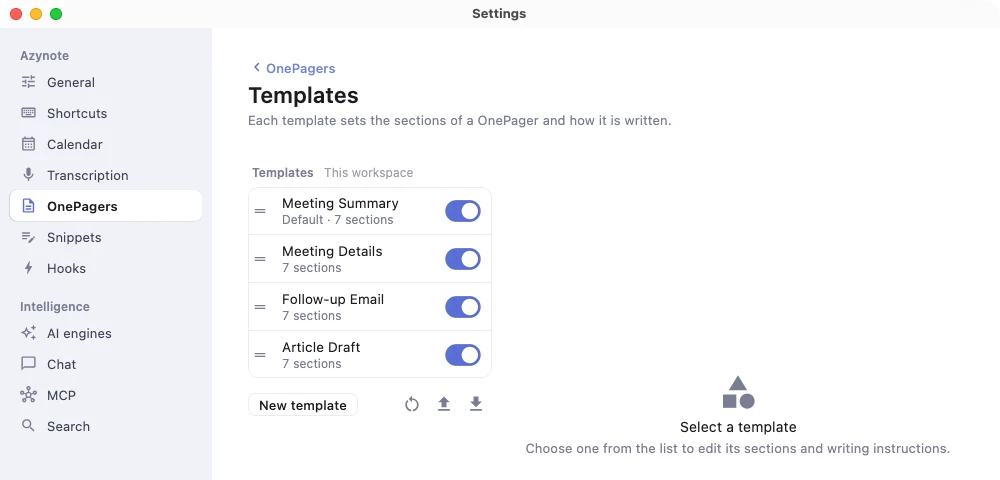
Azynote ships with three default templates:
- Meeting Summary: concise meeting overview with agenda, decisions, action items, and next steps. This is the default pick for new sessions.
- Meeting Details: comprehensive, analytical meeting record with exhaustive summary, people mentioned, references, and improvement recommendations.
- Follow-up Email: a ready-to-send professional follow-up email generated from the meeting, with smart placeholder detection for commitments.
When you want something more specific (a discovery-call template, a weekly-review template, a decision-log template), you build your own.
What a template controls#
Each template has a name and:
- Sections: the headings of the OnePager, in order. Each one has a heading (what readers see) and what to write under it (your instruction, for example "Extract all commitments made by either side, with the person who made them"). The title always comes first: the calendar event's name, or the session topic.
- Language: English, French, Spanish, German, Italian or Portuguese, or auto to follow the app default.
- Include images: whether images dropped into the session are sent to the engine and added to the OnePager.
- Style: how the engine writes, for every section. "Write for a non-technical executive reader", "Keep sentences short", "Avoid jargon".
Create a template from Settings#
- Open Settings > OnePagers, then Templates.
- Click New template, under the list, and pick Blank template, or a template to start from a copy of it.
- The new template opens on the right. Click its name to rename it.
- Under Writing, pick the Language, Include images and the Style.
- Under Sections, click Add section for each heading, and fill in its Heading and What to write. Drag the handle to reorder sections, or delete one with its trash icon.
Changes are applied immediately. There is no save button and no preview step.
Ask the chat to create a template#
Instead of clicking through the editor, describe the template you want in the chat panel and Azynote will build it for you.
Example:
Create a template for sales discovery calls that covers the customer's current stack, their pain points, the decision-making process, and concrete next steps.
The AI drafts the sections, writes the instruction for each section, and saves the template to your workspace. It shows up in Settings immediately, and you can tune anything by hand afterward.
This is the fastest way to get a useful template. Many users iterate by chat ("add a section for competitive mentions", "make the tone more formal"), then polish in the editor.
Manage your templates#
From the Settings screen you can:
- Enable or disable a template with the toggle on each row. Disabled templates stop appearing when you pick a template for a session.
- Duplicate a template to make a variant without starting over, with the copy icon at the top of its editor.
- Make default a template, so new sessions use it.
- Delete a custom template. At least one must stay enabled.
- Import or export templates with the Import and Export icons under the list. Share them with teammates or version-control them in your own repo.
- Reset to defaults to restore the templates that ship with the app.
Pick which template a session uses#
A session is bound to one template at a time. The first time you generate a OnePager for a session, Azynote uses your default template. You can switch templates for that session in the session settings before regenerating.
Sessions remember their last template choice, so future regenerations reuse it unless you pick a different one.