Chat is the colleague who attended every meeting.
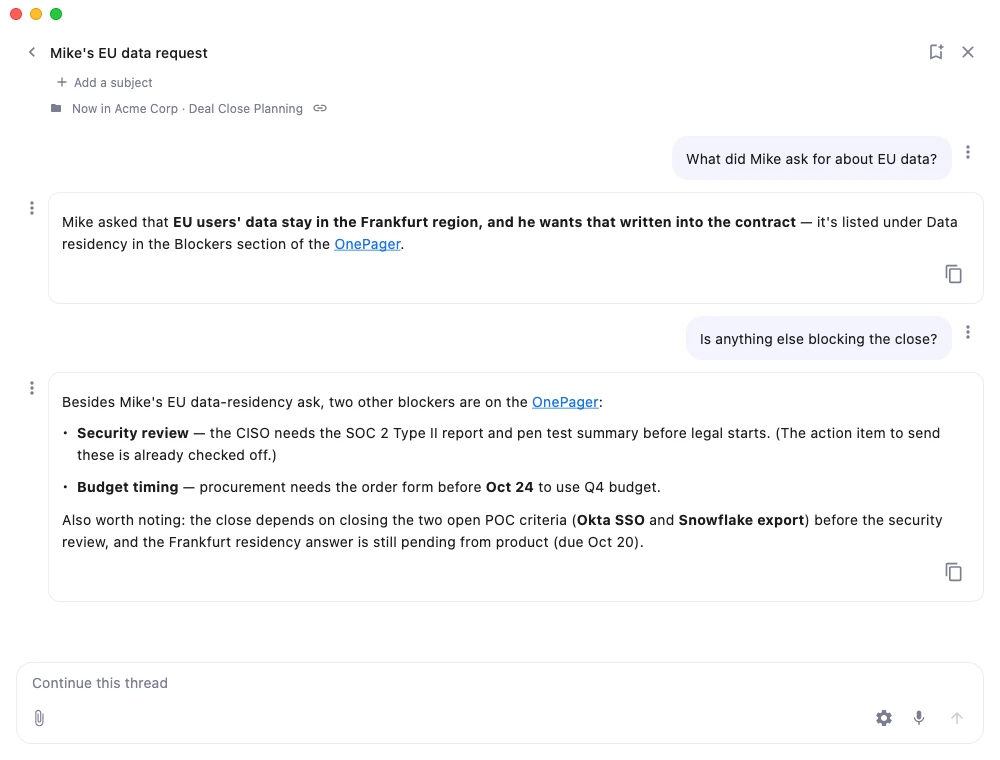
Instead of re-reading a three-page transcript to find what Sarah said about the timeline, you just ask. Chat knows where you are in the app and scopes its answer accordingly: the current session, the current subject, or the whole workspace.
Open the chat#
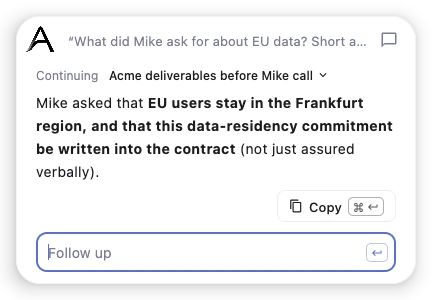
- Tap the orb, or press Ctrl Shift C from any app, to ask a quick question in a card next to your pointer. The chat icon on the card opens the full chat on that conversation.
- Or pick Open Chat from the menu bar.
The chat opens in its own floating window so you can keep it next to your session, on a second screen, or wherever you want.
One thread per topic#
You can ask about a client's renewal at 9:05 and about dinner at 9:10 without the two getting mixed up. Each question you ask from the orb goes into the thread it continues, or starts a new one. Azynote decides, and tells you in one line above the answer:
- Continuing Snowpark vs Spark: your question followed up on that conversation, so the answer had it as context.
- Started Soft-boiled egg timing: a new topic, answered fresh. The thread gets its name from Azynote once the answer is in.
If Azynote got it wrong, click the thread's name. The menu offers New thread, the threads it hesitated between, and Find a thread. Pick one and the same question is asked again there, with that thread's history. You never retype it.
A follow-up typed under an answer on the orb's card stays in the same thread. So does anything you type inside a thread in the chat window.
Find a thread#
Click the back arrow next to the thread's name to see your threads.
- The list shows the last 8 threads you used, newest first, with a one-line summary. Older ones are under N more threads. Nothing is lost after a weekend away.
- Search threads finds threads by keywords, in their names, summaries and messages. "snowpark udf" finds the thread that mentions both.
- By subject groups threads under their subjects. A thread filed under two subjects shows under both.
- Click a thread to carry it on. Typing in the box under the list starts a new thread, and so does the + button.
- Hover over a thread and click the trash icon to delete it. Azynote asks first.
Merge two threads#
Two threads can turn out to be one conversation: you asked about the Acme renewal on Monday and again on Wednesday, and Azynote started a new thread the second time. Click the merge icon at the top of the thread list to open Threads to merge.
- Suggested lists the pairs Azynote finds alike, each with why. Click Merge, or Keep apart so the pair is not suggested again.
- Pick two threads lets you choose any two yourself, with a search field. Click two threads, then Merge.
Either way, you name the merged thread and see the order the two will read in. The two threads become one, with every message in time order. A thread linked to a session keeps its link, and two threads linked to different sessions cannot be merged.
File a thread under a subject#
Azynote files each thread under the subject it clearly belongs to, as it names the thread. You can change that whenever you like:
- Hover over a thread in the list, or open it: its subjects show as pills under its summary, or under its name in the thread.
- Click + to add a subject, or create a new one, the same way you add a subject to a session. Click × on a pill to take it off.
- Once you change a thread's subjects, they are yours: Azynote no longer changes them, even when the conversation moves on. Take every subject off and the thread stays with none.
Rename a thread#
Azynote names each thread after what it is about, and renames it as the conversation moves on. To give it your own name, open the thread and click its name at the top. Type the new one and press Return. Esc or a click elsewhere keeps the old name.
Once you rename a thread, the name is yours: Azynote no longer changes it.
Leave a thread while it works#
You don't have to wait for a long answer. Click the back arrow and open another thread, or start a new one: the answer keeps coming in its own thread and is there when you go back.
- In the list, a thread at work shows a small spinner and how long it has been working. An answer you have not read yet shows an indigo dot. A thread waiting for your OK to use a tool says Waiting on you.
- Inside a thread, the back arrow carries the same mark for the other threads, so you see that something wants you without leaving.
- Cmd L goes to the next thread that wants you, Cmd J to the previous one, and Cmd K shows the list, from any Azynote window (in a note, Cmd K stays Write with AI).
- With an ACP agent (Claude, Cortex Code and the like), up to three threads answer at once: ask in one, move to another and ask there too. With Gemini, OpenAI or your local model, the chat answers one question at a time. When it is answering as much as it can, the box under the thread you are in says so and keeps what you typed until you can send it.
- The orb shows it too. Its dot means something is ready to read, a thread that finished included, and its number counts what is waiting on you: a meeting about to start, an agent asking before it acts, a scheduled instruction that failed or was missed. Point at the orb to see what is behind them. Click it: with one thing, that thing opens; with several, the orb opens Activity, one row each, and each row opens its own card.
Save a thread as a session#
Some threads turn out to be worth keeping: a comparison you will need for a client, a plan you worked out. Click the bookmark icon in the thread's header (Save as session).
- Check the title. Azynote fills it in from the thread.
- Check the subjects. They start as the thread's own. Click + to add another or create a new one, × to take one off. The thread is filed under the subjects you picked here too.
- Click Save session.
The new session holds the thread as a note, the files you shared in it as attachments, and a OnePager written from them, like any other session. A line in the chat says it was saved, with Open to go to it. The thread stays, linked to the new session: the session's name shows under the thread's subjects and opens it, and the session's chat icon opens the thread.
Keep a conversation with its session#
A conversation about a meeting belongs with the meeting. Link a thread to a session and you can pick the conversation up again from the session, tomorrow or next week.
- From the session: click the chat icon at the top right of the session or of its OnePager, next to ⋯. The chat opens on a new thread already linked to the session. Once the thread has a conversation, the icon turns blue, and clicking it brings you back to the same thread.
- From the chat: with a session open, the Now in line under the thread's name ends with a link icon. Click it to link the thread you are in to that session. The line then reads Linked to the session: click the session's name to open it.
- In the thread list, a linked thread shows its session's name under its summary.
- Linking files the thread under the session's subjects, unless you already chose the thread's subjects yourself.
- A session has one thread, and a thread one session. On a session that already has its thread, the link icon does not show: use the session's chat icon to get to that thread.
- To unlink, point at the blue link icon next to Linked to and click. The thread and the session both stay as they are. Deleting the thread, or the session, also just removes the link.
On a subject rather than a session, the same link icon files the thread under that subject. Click it again to take the subject off.
Context is automatic#
Under the thread's subjects, the chat shows Now in the subject and session you are viewing. As you navigate around Azynote, it updates. Nothing is linked unless you click the link icon at the end of that line.
- Inside a session, the chat scopes its answers to that session and its transcript, notes, and assets.
- With no session open, the chat falls back to the whole workspace.
You do not have to say "in Tuesday's meeting with Acme". The chat already knows.
Examples:
- "What did Sarah say about the migration timeline?"
- "Summarize the last three sessions with this client."
- "Which session mentioned the SSO issue?"
- "What were the blockers in this meeting?"
- "Who committed to what, and by when?"
Attachments#
Drop a file into the chat window, or click the paperclip icon in the input footer (Cmd+O), to attach a document, image, or spreadsheet to your next message. Useful for ad-hoc questions that need one-off context beyond the current session.
Voice / Discussion mode#
Click the microphone icon in the input footer, or press Ctrl Shift V from any app, to talk to the chat instead of typing. It answers out loud and keeps a written record in the thread you are in.
What happens next depends on the Voice row in Settings, AI engines:
- Live with Gemini or Live with OpenAI: a live conversation in the chat window that listens and answers continuously. The chat shows a live status: Connecting..., Listening..., AI Speaking.... Click End discussion to go back to text input. Your voice streams to the provider.
- Turn by turn: you ask, press Enter, and hear a short answer from the same engine that answers your typed messages, all from a small pill at the top of the screen, whatever app you are in. Press Enter again to reply. Whisper listens on your Mac. See Voice conversation.
You can pick your input microphone and output speaker from the gear icon next to the mic.
Useful for hands-free debrief after a meeting, brainstorming out loud, or getting a quick briefing before your next call.
Image generation#
Ask for an image in plain language and the chat will generate one.
- "Draw an architecture diagram of a webhook-based ETL pipeline."
- "Generate a visual summary of this session."
Images appear inline in the chat bubbles. Click an image to open the fullscreen viewer, then Save to Downloads to keep it.
Ask the chat to create things#
The chat is not just for answers. You can ask it to write content directly into your workspace:
- "Generate a OnePager for this session using the Meeting Summary template." The chat triggers OnePager generation and the result lands in the session.
- "Create a new session under the Acme subject called 'Pricing Q2'." The chat creates and opens it.
- "Write a follow-up email based on the last session and drop it as a new note." The chat adds the note to the session.
If the output is not quite right, you can always tweak it by hand in the Editor, or convert a chat-generated OnePager back into a plain note with one click.
Slash commands#
Type / in the chat input to see available commands. As soon as you finish typing one, it turns indigo, so you know Azynote recognized it. The orb's card works the same way: type / there and the same list appears. The one you will use most in live sessions:
/brb: step away without missing anything#
When something pulls you away mid-meeting (someone at the door, a phone call, a quick break), type /brb in the chat before you leave. The chat marks you as away and shows a banner. Transcription keeps running the whole time, so nothing from the meeting is lost.
When you are back, click the I'm back button in the banner. The chat reads everything that was transcribed while you were away and gives you a tight summary of what you missed, using your currently selected chat model. It takes a few seconds. After that, you are caught up and the banner clears.
You can do the same from the orb without opening the chat. While a transcription runs, tap the orb and pick Step away, catch me up after (or type /brb and press Return). The orb shows a small moon while you are away, and pointing at it says for how long. When you are back, tap the orb: it opens straight on the summary, and you can ask a follow-up right under it. The chat and the orb share the same away state, so you can step away from one and come back from the other.
/brb only works while a transcription is running. If you stop the transcription while you are away, the away state simply ends.
The time you spent away is subtracted from the transcript timecodes, so the elapsed times in the transcript still reflect actual meeting time, not wall-clock time.
When an ACP agent asks permission#
With an ACP agent answering, the agent may ask before it uses a tool: one of Azynote's tools, or its own, such as running a command. The question shows where you asked, in the chat window or on the orb's card. You answer Allow or Deny.
Tick Don't ask again and your answer is kept for this workspace. A command is kept by its name, so allowing cat never lets rm run without asking. Settings, ACP lists the kept answers under Tools that don't ask, each with Remove.
Allow every tool, in the same section of Settings, answers yes to every question in this workspace, so nothing interrupts the agent. That includes the agent's own shell: with it on, the agent can run commands on your Mac without asking. A tool you declined with Don't ask again still doesn't run. It is off until you turn it on, and you can also set it with azynote-ctl acp allow-all on (see Command line).
Conversation history#
Your threads are saved per workspace and survive restarts. When you reopen the chat, it shows the thread you were in.
To start fresh, open a new thread with + in the thread list. The old thread stays in the list, out of the way of the new one. Deleting a thread also removes the images generated in it.
Good to know#
- An AI engine must be set up: the chat and the orb appear once one is ready, your local model, Gemini, OpenAI or an ACP agent. Set one up in First Launch or later in Settings, AI engines, where the Chat row picks which engine answers.
- Credentials refused: when a cloud engine turns your credentials down, the chat says so in a banner. If you use Gemini through Vertex AI, click Re-authenticate to sign in to Google again. For an API key (Gemini or OpenAI), paste a valid one in Settings, AI engines. Dismiss clears the banner. A chat running on your local model never needs this.
- Voice mode requires audio devices: the mic button only appears if macOS detects an input and output device.