Once a session has some notes, transcript, or attachments in it, you can ask Gemini to turn it into a polished OnePager. The trigger is always the same icon: . It appears in three different places depending on where you are.
1. From inside the session (the editor toolbar)#
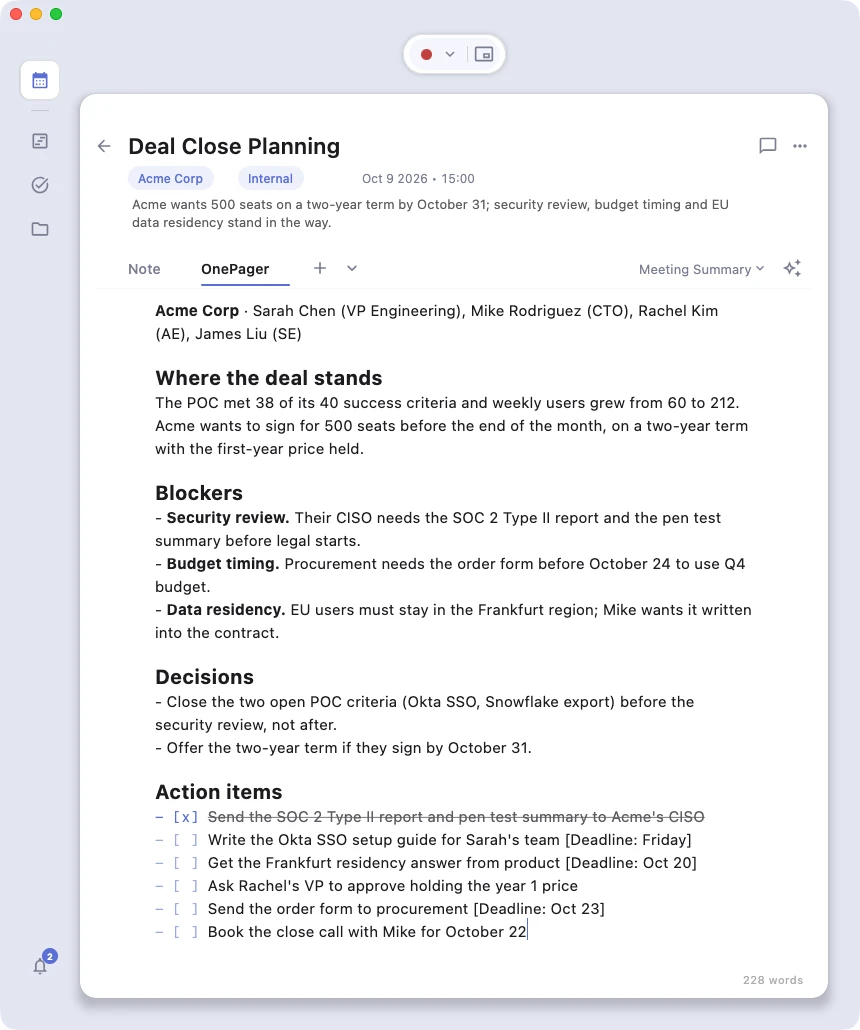
You are in a session, you have just typed your notes or finished transcribing. The session editor has an button right in its toolbar. Click it.
This is the most natural moment. You are already looking at the raw material.
2. From a Subject page#
Open a Subject (for example, "Acme Corp"). You will see the list of sessions belonging to that subject. Hover over a session row, then click the icon on the right side.
Use this when you are reviewing your past work in the context of one project and spot a session that deserves a OnePager.
3. From the Timeline#
Open the Timeline view, your chronological feed of sessions across all subjects. Each session card has the same icon. Click it.
Use this when you are wrapping up your day and want to materialize a few key moments at once.
Every OnePager uses a template that controls its structure, language, and tone. Azynote ships with a default template, and you can build your own for specific meeting types. See OnePager Templates.
That's the whole daily loop: transcribe, type, generate.