Most of the time Azynote answers when you ask. A scheduled instruction turns that around: you write what you want in a calendar event, and when the event starts, Azynote does it and lets you know through the orb.
Your calendar becomes the list of what is scheduled. You see it on your phone, and you move or delete an instruction like any other event.
Choose your Azynote calendar#
Azynote only reads instructions from one calendar, the one you choose.
- Create a calendar that only you write to, in Calendar or in your iCloud or Google account. Call it "Azynote", for example.
- In Azynote, open Settings > Calendar.
- Under Scheduling, pick it as your Azynote calendar.
Only calendars Azynote can write to are listed. Choose None to turn scheduled instructions off.
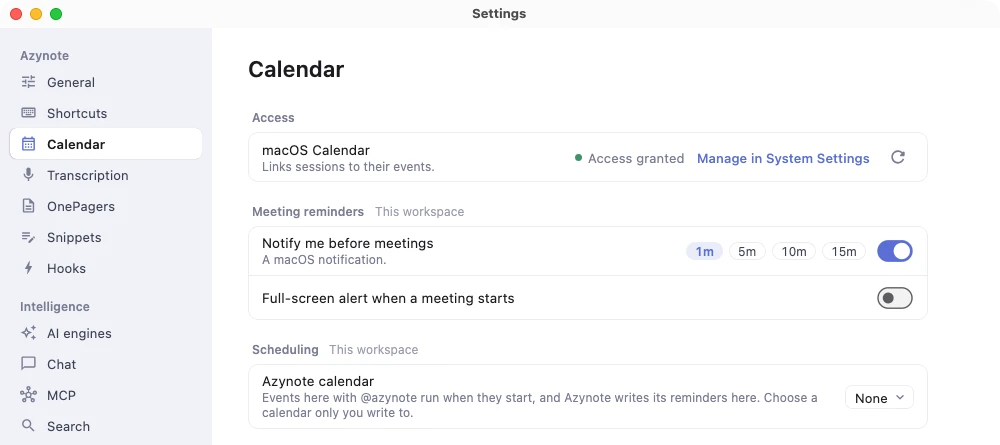
Pick a calendar nobody else adds events to. Anything written there with @azynote runs as if you had written it.
Write an instruction in an event#
Add an event to your Azynote calendar and start its title with @azynote, then what you want done:
@azynote: Remind me to buy water@azynote: Read my unread email and make a summary
When the event starts, Azynote runs the instruction with your chat, using the same tools and connected services it has when you ask it yourself (your mail, through a connected MCP server, for example).
A few details:
- The colon is optional, and
@Azynoteworks too. - A long instruction can go in the event's notes. Write
@azynotealone in the title, and the notes are the instruction. - A repeating event runs at every occurrence. Each Monday's summary lands in the same chat thread, so last week's is right above it.
- All-day events are never instructions.
- An invitation from someone else is ignored, even if it says
@azynoteand lands on your Azynote calendar.
Ask the chat to schedule it#
You don't have to create the event yourself. Ask in the chat:
- "Remind me tomorrow at 10 to buy water"
- "Every Monday at 9, summarize my unread mail"
Azynote writes the event on your Azynote calendar, 15 minutes long and shown as free, so it never makes you look busy to colleagues. It tells you in one line what will happen and when.
"Remind me" schedules something that happens at a time. "Create a task" or "add a todo" stays a task, which you find with your other tasks.
To see what is scheduled, move it or cancel it, ask too: "what have I scheduled this week?", "move the water reminder to 11", "stop the Monday summary". Azynote only ever writes to your Azynote calendar, never to your other calendars.
If you haven't chosen an Azynote calendar yet, the chat says so and points you to Settings > Calendar.
See the result on the orb#
When an instruction has run, the orb shows a count, as it does for a meeting that is due. Point at the orb to see what it is about. Click it to open the card:
- Answered: the answer itself, with Open in chat to read the whole conversation, or Got it to put it away. A reminder is usually one line, so the card is enough.
- Failed: why it did not finish, with Run again or Dismiss.
- Missed: see below.
When a meeting is due at the same time, the orb opens the meeting first. Click it again for the instructions.
With the orb's Always visible setting off, the orb only shows while Azynote is in front, so a macOS notification tells you as well: a reminder never goes unseen behind another window. Click the notification to open the answer in the chat.
When your Mac was asleep#
An instruction runs at its start, while Azynote is open. If Azynote was closed or your Mac was asleep at that time, it does not run late by itself: a reminder to buy water at 18:00 is not much use when it was meant for 10:00.
Instead, the orb shows it as Missed for 12 hours, with Run now and Dismiss. An instruction from 23:00 is still waiting for you at 8:00 the next morning.
While you are away#
Nobody may be at the Mac when an instruction runs, and an instruction like "read my unread email" puts text written by other people in front of the AI. So during a scheduled instruction:
- Reading runs without asking: your sessions, notes, tasks, calendar and files, and tools of connected services that say they only read.
- Everything else asks first: sending a message, writing or changing a file, running a command, opening a web page, adding to your calendar. The instruction waits on the orb's card until you answer Allow or Deny.
An instruction can also answer with a artifact, a page that shows the result. Making the artifact never asks. An artifact only shows things: any change you want from it goes through Azynote and these same questions.
Tick Don't ask again to keep your answer for this workspace. A command is kept by its name, so allowing cat never lets rm run without asking.
Allow every tool in Settings > ACP applies only when chat runs on your ACP agent: it is about an external agent you chose to trust. An instruction that runs on Gemini, OpenAI or Local still asks.
In the Calendar tab#
Events on your Azynote calendar show in the Calendar tab like any other, marked Azynote runs this. They are not meetings: clicking one does not start a session, they have no subjects, and they never trigger a meeting reminder or a meeting hook.
Good to know#
- Scheduled instructions need the in-app chat. With the Chat row in Settings > AI engines set to Off, as the CLI preset does, an instruction fails and the orb says why.
- The answer uses your chat's engine, the same one you talk to. What leaves your Mac follows the choice you made for Chat.
- One Mac at a time. If Azynote runs on two Macs with the same calendar, both run the instruction.
- Settings are per workspace. Each workspace has its own Azynote calendar, or none.