Hit record. Azynote transcribes what is being said in real time, fully on your Mac. You get a clean, searchable transcript at the end. No audio file is ever stored.
How it works#
Azynote treats the transcript as the product. The audio is just the means.
While the transcription is running:
- Audio is sliced at natural pauses in speech (voice activity detection), so each slice is roughly one complete sentence rather than an arbitrary time window. This gives Whisper whole thoughts to work on and produces cleaner text.
- Each slice is transcribed on-device by Whisper.
- As soon as the transcript for that slice lands in your session, the slice itself is deleted.
When you stop, all that remains in the session directory is the transcript file. There is no .wav, no partial audio, nothing you could play back.
This is deliberate. It keeps your conversations private, saves disk space, and makes the feature safe to use often. It also means: if you miss something in the transcript, you cannot go back and re-listen. Trust the text.
Start a transcription#
Click the red record button in the top toolbar of any session. Transcription starts immediately, no dialog, no confirmation.
Choose what gets transcribed#
In Settings > Audio, pick:
- Microphone: which mic captures your voice.
- Capture App: whether to also transcribe a second audio source, so both sides of a meeting land in the transcript. Three options:
- All System Audio (default): transcribe anything playing on your Mac. Catches any meeting platform with no further setup.
- A specific application: pick a single app. Recognized meeting apps include Zoom, Microsoft Teams, Webex, and FaceTime. Browser-based meetings (Google Meet, Jitsi) route through your default browser. You can also pick any other running app.
- None: only your voice is transcribed.
When a Capture App is set, Azynote automatically separates distinct voices within each audio source and labels them in the transcript. Microphone voices appear as Mic: Speaker 1, Mic: Speaker 2, and so on. System-audio voices appear as System: Speaker 1 (when using All System Audio) or with the app name, for example Zoom: Speaker 1 or Google Chrome: Speaker 2. Each source has its own independent speaker numbering starting at Speaker 1. These numbers show up once the session ends; while it is still running, a line only names its source (see Timecodes and speaker labels below).
Azynote remembers the last selection.
How speakers are identified#
Azynote figures out who is speaking in three steps, all automatic.
Separate audio sources. Your microphone and the meeting audio are treated as independent streams from the start, so your voice is never mixed with the other side. In a one-to-one call, that separation alone is enough to tell you who said what.
Voice detection within each source. When several people share the meeting audio, Azynote detects the distinct voices as the conversation happens. You do not configure anything and do not need to know in advance how many people will join. The numbering (Speaker 1, Speaker 2, ...) is settled once you stop the session, not while it runs. A live guess could still change as more of the meeting is heard, so Azynote waits until it has the whole picture before putting a number on a voice.
Names and cleanup (optional). After the session, you can put real names on the numbered speakers and fix any mistranscribed words in one action. See Improve the transcript below.
Calendar-aware capture#
When you start a session from a calendar event, Azynote can automatically switch your Capture App to match the meeting platform. This only applies when your Capture App is set to a specific application or None. If you are in All System Audio (the default), Azynote leaves your choice alone, since that mode already catches any meeting platform.
Where it applies, Azynote maps the event's meeting link like this:
- Zoom link → Zoom
- Teams link → Microsoft Teams
- Webex link → Webex
- FaceTime link → FaceTime
- Google Meet or Jitsi link → your default browser
While a transcription runs#
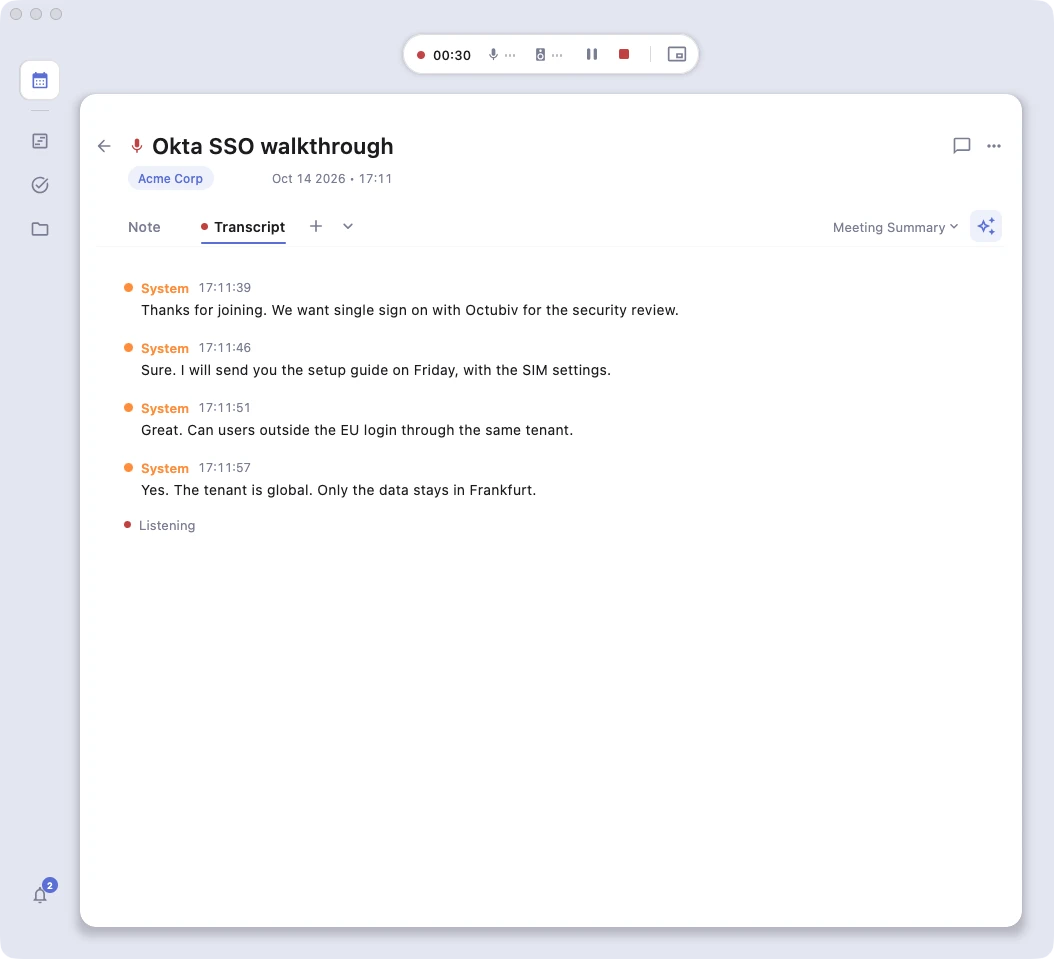
The session shows a live indicator at the top of the window with a pulsing red dot, the active microphone name, a running timer, small activity dots for the mic (and app audio if a Capture App is set), and Pause / Stop buttons.
Open the Transcript tab and the transcription appears there as you speak. No waiting, no "send" button. It just lands on the page. You can keep typing in the Notes tab at the same time.
Pausing by source#
You can pause just one audio source while the other keeps running.
- Click the mic indicator to pause your microphone only. Useful when you need to take a side call, step away from your desk for a moment, or have a sensitive aside you do not want in the transcript. System audio keeps capturing the meeting the whole time.
- Click the system-audio indicator to pause that side only. Your mic stays active.
- Click the master Pause button to pause both at once.
When a source is paused, its icon dims and swaps to a pause glyph so you can tell at a glance which sources are active. The master Resume button appears only when both sources are paused. The Mini Player mirrors this: the same per-source controls are available there when the app is collapsed.
Click Mini Player to collapse the app into a compact overlay that stays on top of everything else. For full-screen shares where you do not want the app visible at all, Stealth Mode (Ctrl+H) hides every piece of chrome and leaves a neutral notepad surface on screen.
Stealth still hides the toolbar and the record button, but everything stays within reach:
- Navigation. Move your pointer toward the left edge of the window and a thin line lights up along it. Click the lit edge to open the navigation rail, so Calendar, Timeline, Tasks and Subjects are one click away, and the page's back arrow stays clickable. The rail's bottom zone carries the stealth toggle too, so opening the rail from the edge is also how you exit stealth, besides pressing Ctrl+H again.
- Back arrow and document tabs. They rest invisible so the view reads as a plain note. Move your pointer to the top of the note, anywhere above the tabs, and the back arrow and the row of document tabs and tools fade in; move down into the text and they fade out again. Your text never moves when they appear.
- Upcoming meetings. When a meeting is about to start, a small green dot appears at the bottom left of the editor, pulsing faster as the meeting gets closer. Hover it to see the upcoming meetings and click Start to open the meeting's session, or create it, without leaving stealth.
- Transcription controls. In the editor's footer, hover the status dot next to the word count (or the word count itself) and Start, Pause/Resume, or Stop appear, depending on whether a transcription is running. They stay hidden the rest of the time, and the same hover reveal works in the live transcript view. After you click Stop, the dot is briefly replaced by a small spinner while the last few seconds of audio finish transcribing.
Keep the window beside your call#
The main window can also shrink down to fit next to a call, as small as 320×400. Pin Window on Top (Ctrl+P) keeps it above whatever else is on screen; the toggle lives in the View menu and in the navigation rail's bottom zone, and Azynote remembers it the next time you launch. If the window ever ends up too small to work with, View > Reset Window Size puts it back to its default size.
Stop#
Click Stop. Azynote finishes transcribing the last slice, shows a brief Processing... indicator, and removes the live indicator. The complete transcript is now in the Transcript tab, ready to edit, search, copy, or feed into a OnePager. No audio file is saved to the session.
Work with the transcript#
The transcript behaves like a regular editor:
- Select and edit text directly, for example to fix a misheard name.
- Cmd+F to search inside the transcript.
- Copy and paste like any text.
- It automatically feeds into OnePager generation, so any correction you make shows up in the next OnePager.
- Chat questions about the session use the transcript as context, so you can ask "what did Sarah say about the timeline?" and get a grounded answer.
Timecodes and speaker labels#
Every line in the transcript is stamped with an elapsed-time prefix. While the transcription is still running, a line names only its source:
[00:14:23] Mic: So I think we should focus on quarterly targets.
[00:14:31] Zoom: That sounds good, let's do it.
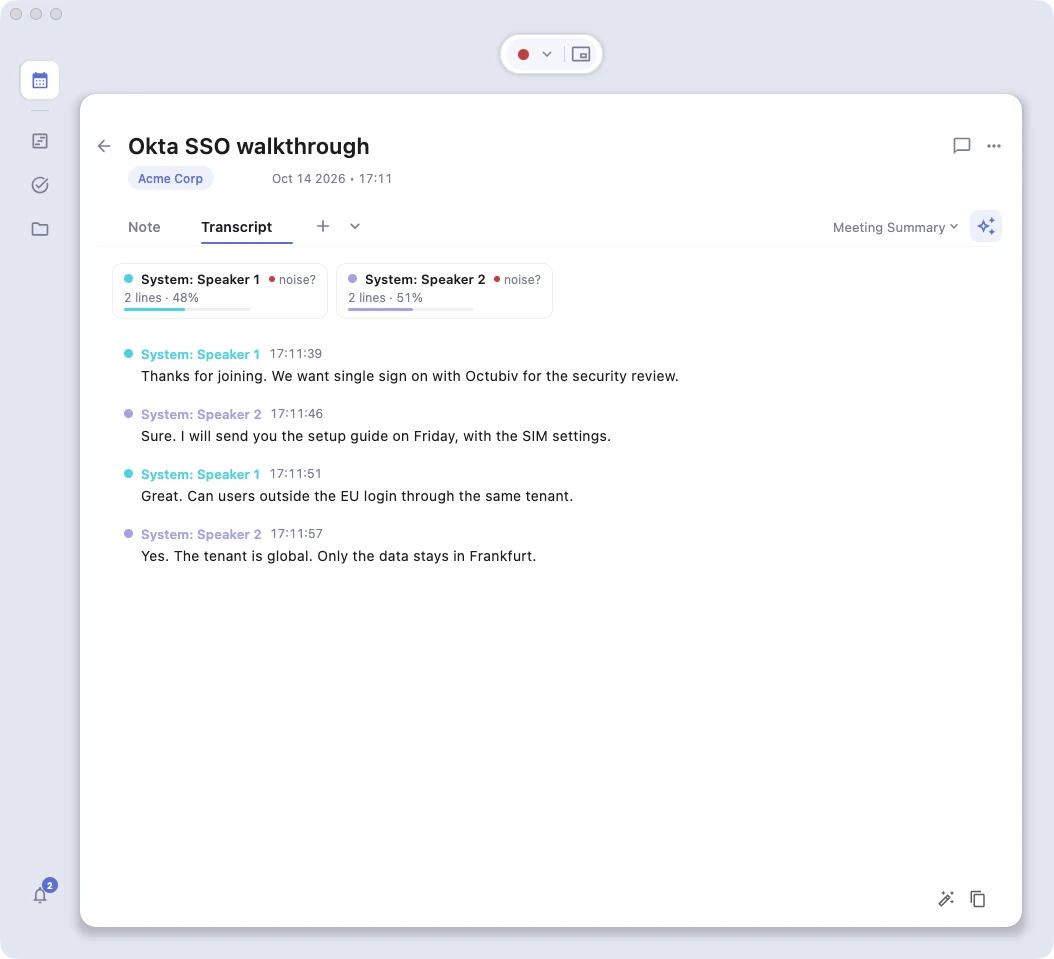
A live speaker number could still change as more of the meeting is heard, and watching it flip while you read would look like the feature is broken rather than just unfinished, so Azynote does not show one until it is final. Once you stop the session (or reopen a transcript you finished earlier), the same lines carry a full Source: Speaker N label:
[00:14:23] Mic: Speaker 1: So I think we should focus on quarterly targets.
[00:14:31] Zoom: Speaker 1: That sounds good, let's do it.
Your microphone appears as Mic: Speaker N. A capture source appears as the source name followed by a speaker number, for example Zoom: Speaker 1 or System: Speaker 2. It numbers speakers rather than naming them, so you may want to rename speakers in your notes after the meeting. The clock measures actual meeting time: any stretch you spent paused, or away with /brb, is subtracted, so the timecodes reflect the real flow of the conversation, not wall-clock time. This makes it easy to skim for a specific moment or cite a point precisely.
Confidence dot#
To the left of the speaker label on each line, there is a small colored dot. While the session is running, it is just colored by source, since there is no speaker attribution to rate yet. Once you stop, the same dot shows how confident Azynote is that the line is attributed to the right speaker:
- Solid dot: high confidence.
- Faded dot: medium confidence.
- Hollow ring: low confidence. Worth a glance to check the attribution before sharing the transcript.
The dot uses the same color as the speaker label, so you can spot uncertain lines at a glance without reading every label.
Speaker summary#
While the transcription is running, the strip at the top of the Transcript tab just reads "Speakers are grouped when you stop. Lines show which audio source they came from." Once you stop, it turns into a row of chips, one per detected speaker, each showing the speaker label, the number of lines they spoke, and their average line duration, for example:
System: Speaker 1 · 7 lines · 7.0s avg Mic: Speaker 2 · 4 lines · 8.2s avg
This lets you quickly see who dominated the conversation and cross-reference a speaker label with how much they contributed before reading the full transcript.
Improve the transcript#
After a session, you can ask Azynote to clean up the transcript with one click. The Improve transcript button (the magic-wand icon) is in the session editor toolbar. Click it to open a small dialog.
The dialog has two optional text fields: Microphone and System audio. Type the names of the people on each side, separated by commas. Leave a field empty and the AI will try to infer names from the conversation itself (from moments where someone is addressed by name, or a role is mentioned). Names you type act as hints, not overrides.
When you click Run, three things happen:
- Speaker names are applied. "Speaker 1", "Speaker 2", and so on are replaced with real names where the AI can figure them out.
- Mistranscribed words are fixed. Proper nouns, product names, and acronyms that the transcription got wrong are corrected using surrounding context. For example, a product name heard as two separate words gets merged back.
- Duplicate speakers are merged. If the same person was split into two numbered speakers, their lines are combined under one name.
When it finishes, a brief confirmation appears: "Transcript improved. N speaker(s) identified." After that, the corrected names and words flow into any OnePager you generate from the session.
Hide backchannel. The transcript header also has a "Hide backchannel" toggle. Turn it on to filter out short filler lines ("yeah", "mhm") from the view, which can make a busy transcript much easier to read.
Run automatically after every recording#
If you want the cleanup to happen without clicking anything, go to Settings > Audio and turn on Auto-improve transcripts after recording. Azynote runs the improvement in the background as soon as each transcription finishes.
What gets sent to the AI#
Improving a transcript runs on the engine you chose for the Transcript improvement row in Settings, AI engines. With your local model, nothing leaves your Mac. With a cloud engine or your own agent, the transcript text goes to it. When the row is set to Off, the button is not shown.
Only the transcript text is ever sent, never audio. Your audio is transcribed on your Mac and discarded as soon as it is. If you use Gemini, see Gemini API Cost for what a run costs.
Legal and consent#
Default to asking. A one-line ask at the start of the meeting is enough: "I'm capturing a transcript of this call to help with my notes, any objection?"
Transcription laws vary by jurisdiction. Some places allow one-party consent, others require everyone's consent, and rules differ in the EU under GDPR. This is not legal advice. When in doubt, ask.
Tips#
Auto-copy a consent message to your clipboard. Turn on Settings > Audio > Recording Notification and write your own message ("FYI I'm taking notes with my AI assistant, it transcribes locally and never leaves my Mac"). The moment you start a transcription, Azynote copies that text to your clipboard, ready to paste into Slack, Teams chat, or the meeting app. Toggle off if you do not want it.
Mic-only mode forces presence. Set Settings > Audio > Capture App to None. Only your own voice is transcribed. This nudges you to reformulate what the other party said out loud ("so what I'm hearing is..."). You get better comprehension for them, confirmation for yourself, and a cleaner transcript that reads like your own thinking.
Brain drainer after the meeting. When capturing the call itself is awkward, skip it. Walk out of the meeting, start a session, hit record, and narrate the key points to Azynote for three to five minutes. Zero consent friction, zero third-party voices to manage, and a transcript that already reflects your own framing of what mattered.
Good to know#
- Already have a file? Drop any audio or video file into a session to transcribe it the same way. See Session Assets.
- Permissions: Transcribing your mic requires Microphone access. Transcribing a Capture App's audio also requires macOS's Screen & System Audio Recording permission. Both are set up during First Launch.
- First-time model download: your first transcription triggers a one-time download of the Whisper model, about 1.5 GB compressed. Azynote shows a progress dialog. If you cannot download (corporate firewall), drag a local model bundle zip into the dialog to import from disk. Contact support at support@azynote.com for the bundle.
- One transcription at a time: if you drop an audio file while a live transcription is running, Azynote waits until you stop before transcribing the file.