You are editing a doc in Notion, drafting a message in Slack, or reviewing a transcript in your browser. A paragraph needs tightening. Normally you would copy it, switch to a separate tool, wait, copy the result, switch back, and paste.
Command Panel cuts that to one hotkey.
Summon it from anywhere#
Select any text in any app on your Mac, then press Control+Shift+O.
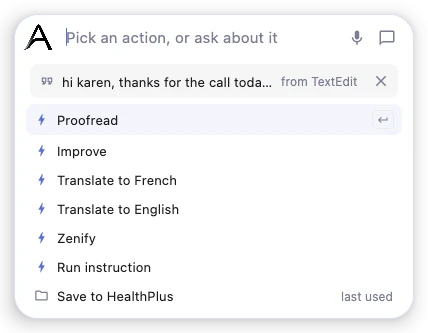
The panel appears on top of whatever you were doing, with your selected text under the field at the top and the app it came from, for example "from TextEdit". Only the panel comes forward. If Azynote's main window was open, it steps aside while you use the panel and comes back the next time you switch to Azynote, the same way a hidden app does.
You can also speak instead of selecting: start dictating with Control+Shift+D, then press Tab instead of Enter. The panel opens with what you said, plus an Insert as I said it row at the top in case you change your mind.
Pick an action#
The panel lists all the text actions you have enabled for it. Actions are configured in Settings → Chat Actions: any action with the panel toggle on shows up here. You can set up as many as you like: Proofread, Improve, Translate to French, Translate to English, Summarize, or anything else you define.
To narrow the list, just start typing in the field at the top, Pick an action, or ask about it. The list filters as you type.
Use the up and down arrow keys to move through the list, then press Enter to run the highlighted action.
What happens next#
The action runs immediately. A live preview streams into the panel as the result is generated, so you can see it taking shape.
When it is done, the result is pasted directly back into the source app, replacing your original selection. You stay in your doc, your email, your browser. No copy-paste round trip. Whatever was on your clipboard before is still there afterwards.
If it takes a while#
Some engines need a minute or two. The card shows how long the action has been running, with a Stop button (or Cmd+.) to end it.
You don't have to wait for it. Press Esc or click into another app: the card folds into the orb and the action keeps running. When it is done, the orb shows a dot, and nothing is pasted while you are elsewhere. Click the orb when you are ready:
- Paste in the app the text came from (Enter) puts the result in place of your selection.
- Copy (Cmd+Enter) puts it on your clipboard, to paste anywhere yourself.
Close the card without choosing and the result keeps waiting behind the orb. Pressing the shortcut again with new text brings back the waiting result first, so it is never lost.
Keyboard shortcuts#
| Key | What it does |
|---|---|
| ↑ / ↓ | Move through the action list |
| Enter | Run the highlighted action. If no action matches what you typed, ask it as a question about the selected text |
| Tab | Run the first action in the list |
| Cmd+Enter | Run the highlighted action in Azynote's chat instead of pasting it back |
| Esc | Close the panel. An action already running keeps going behind the orb |
| Cmd+. | Stop the action running |
Once the result is ready, Enter pastes it in place of your selection and Cmd+Enter copies it.
Cmd+Enter is useful when you want to keep the conversation going. Instead of pasting back, the action runs in your Azynote chat window, so you can iterate, ask follow-up questions, or use the result as a starting point for something longer.
Where the panel opens#
The panel is the orb's card, so it opens next to your pointer, wherever it is on your screen. It closes when you are done, and opens next to the pointer again the next time.
Set up your actions#
The actions in the panel come from your own configuration. To add or change them:
- Open Settings → Chat Actions.
- Create a new action or edit an existing one.
- Turn on the Show in Command Panel toggle for that action.
- The action appears in the panel the next time you open it.
If the panel opens but shows no actions, that toggle is off for all your actions. The panel will tell you: "No actions are in the panel yet. Turn some on in Settings, Chat Actions."
Good to know#
- Accessibility permission is required for the global hotkey to work. If the hotkey stops responding, check System Settings > Privacy & Security > Accessibility and make sure Azynote is toggled on.
- Text selection is required. The panel reads what you had selected at the moment you pressed the hotkey. If nothing was selected, the panel will not appear.
- The source app stays active. You do not need to worry about losing your place. The panel is always on top, and when the result is pasted back, focus returns to the source app.
- Hotkey conflicts. If another macOS app already owns Control+Shift+O, that app wins. Rebind Azynote's hotkey in Settings, or rebind the conflicting app.