A Subject is the project, client, or theme that groups related sessions. If you have read Core Concepts, you already know a session can belong to several subjects at once.
This page covers everything a subject carries beyond its session list: tags, links, and the status summary Azynote writes for it.
Create a subject#
Open the new-session dialog (Cmd+N or File > New Session), type a name that does not yet exist in the list, and press Enter. Azynote creates the subject on the spot and opens your new session inside it.
The only field is the display name. No description, no icon, no color. You can rename it later.
The subject page#
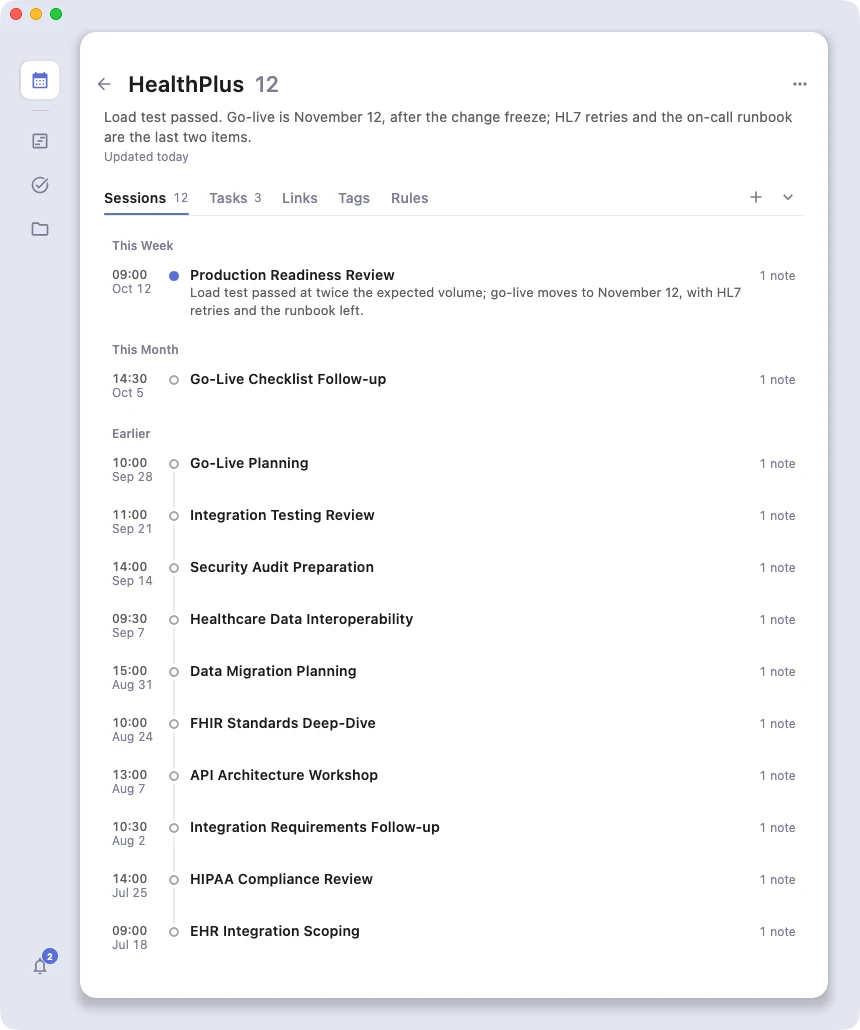
Click Subjects in the left sidebar, then a subject's card, to open its page. You will see:
- Status at the top, a short auto-generated summary of the subject's current state.
- Tabs for the subject's Sessions, Tasks, Links, Tags and Rules, with a count next to Sessions and Tasks.
- Session list under the Sessions tab, grouped by Today / Yesterday / This Week / This Month / Earlier. Each row shows the session title (or timestamp), its one-liner summary, and its notes. Search sessions above the list also finds words inside their OnePagers (see Find a session).
Tags#
Tags are free-form labels you attach to a subject. They are workspace-wide, so typing in any tag field auto-suggests tags you have used before.
- Add: click + Add Tag in the Tags panel, type the tag, press Enter (or click Add). Autocomplete suggests matches.
- Remove: click the X on any tag chip.
- No renaming. Remove and re-add if you want to change a tag.
Links#
Links are labeled URLs (http or https) attached to a subject. Useful for the customer's website, a Jira ticket, a shared doc, the Slack channel, anything you want one click away from the subject page.
- Add: click + Add Link, fill in the Label (display text) and the URL, then Save.
- Open: click the link row.
- Edit: click the pencil icon.
- Delete: click the trash icon.
- Reorder: with two or more links, drag the handle on the left to reorder.
Status#
For every subject, Azynote writes a short status summary (2-4 sentences) capturing where things stand, any blockers, and the next steps. It shows at the top of the subject page.
The summary is generated from the last few OnePagers in the subject. By default, Azynote rebuilds the status every time a new OnePager lands, so the snapshot stays current without you asking.
Customize the status#
Open Settings > Session > Subject Status to tune how the summary is written:
- Auto-Generate After OnePager: whether the status rebuilds automatically every time a new OnePager is produced. On by default.
- Number of Recent Sessions: how many recent OnePagers feed into the summary. Pick 3, 5 (default), or 10.
- Status Prompt: the instruction Azynote sends to Gemini. Edit it freely. The placeholder
{subject}is replaced at generation time with the subject's display name. Leave the field blank to fall back to the default prompt. Reset to Default restores the shipped one.
Tune this when you want shorter or longer status blurbs, a different focus (pipeline stage, risks, opportunities), or a specific voice.
Manage subjects through the chat#
Renaming, deleting, moving sessions across subjects, and setting a manual status are all done through the Chat. Ask in plain language:
- "Rename the Brand subject to Brand & Co."
- "Delete the Lab subject."
- "Also link this meeting to the Acme subject."
- "Set the status of the Acme subject to: migration paused pending security review."
The chat picks the right action and applies it.
Good to know#
- Sessions belong to multiple subjects: the same meeting can live under both a client subject ("Acme") and a theme subject ("Hiring Q2"). Nothing is duplicated on disk, the session is shared.
- Deleting a subject: sessions linked only to that subject are deleted with it. Sessions also linked to another subject are simply unlinked and kept.
- First status needs a OnePager: Azynote summarizes from OnePagers, so a new subject shows no status until you have generated at least one.