Every piece of text in Azynote (notes, OnePagers, anything you type in a session) lives in the same Markdown editor. One tool for working documents and polished outputs.
Markdown support#
The editor renders standard Markdown live as you type:
- Headings (
#through######) - Bold, italic,
inline code - Bullet and numbered lists, nested as deep as you need
- Block quotes with
> - Code blocks with language syntax highlighting
- Tables with pipes and dashes (GitHub Flavored Markdown), rendered in a monospace font so the columns line up
- Links and images
- Horizontal rules (
---)
Task list syntax (- [ ]) renders but does not produce interactive checkboxes. No Mermaid, math, or Excalidraw support in-editor.
Typing shortcuts#
The editor writes the repetitive parts of Markdown for you.
Lists continue themselves. Press Enter at the end of a list item and the next line opens with the same marker at the same indentation. Bullets keep the character you chose, numbered items count up, and a new checkbox starts unchecked. Press Enter on an item you have not typed into yet and the list ends, leaving you on a blank line.
Tab and Shift+Tab indent and outdent the current item, or every line of a selection. They write spaces, not a tab character, so the indentation is unambiguous in the file and visible on screen.
Pasted tables are aligned for you. Cells are padded so the pipes stack into columns. A note whose tables were written before this is tidied when you open it, and the tidied version is saved with your next edit rather than on opening.
Referencing session media#
Type @ in a note to insert a link to one of the session's screenshots, audio files or attachments, alongside your text snippets. Matching works on any part of the filename.
Put your cursor inside the link and the media strip below the editor highlights the file it points at, so you can see which one it is without covering the text. A link whose file has been deleted or moved is struck through in red.
References point at the file, they do not move or copy it, so the same asset can be referenced from as many notes as you like. References resolve within the session the note belongs to.
Pin media to the OnePager#
Drag files or a whole folder onto a session and they join its media strip. Point at any card there and a pin appears in its top left corner. Click it and the file, folder or artifact is pinned to the session's OnePager: the line under the session's title shows 3 pinned, and a click there lists them by name, in the order you pinned them. Pick one to open it as you would from the media strip.
Only what you pin shows there. Pinned cards keep their pin in the media strip, so you can see at a glance what the OnePager lists. Click the pin again, or the pin beside a name in the list, to unpin it. Deleting a file unpins it too.
Editing a note#
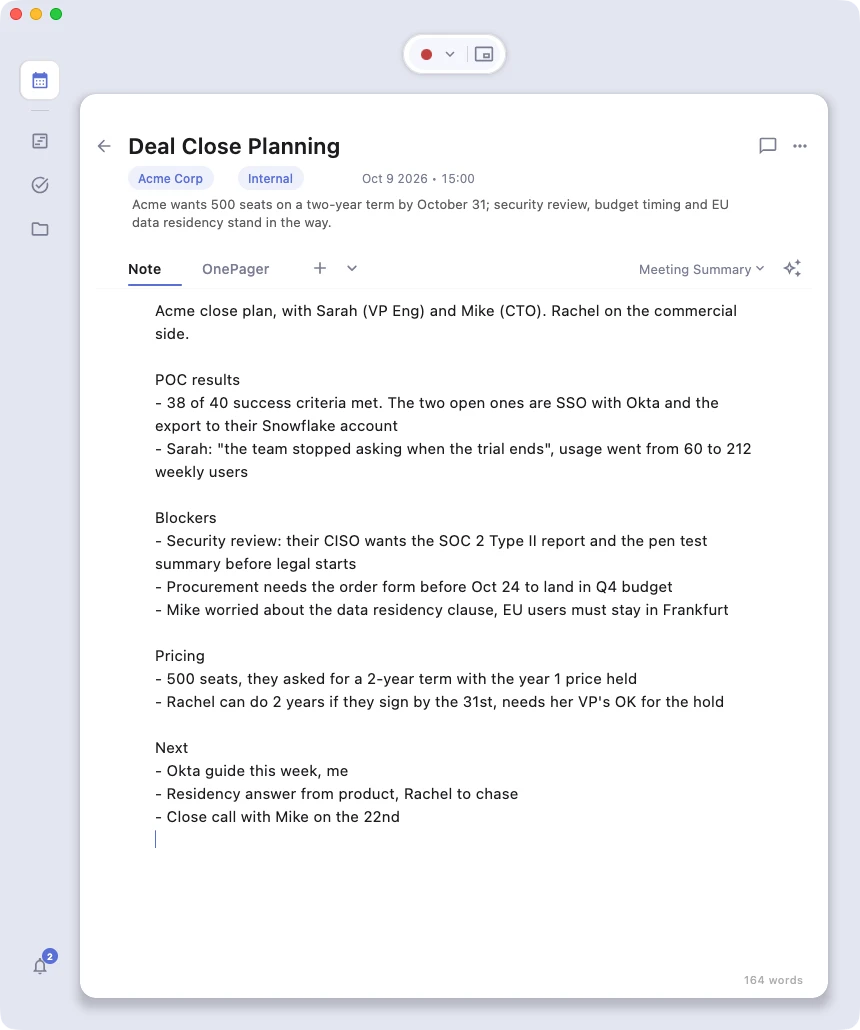
Inside a session, click a note's tab at the top of the editor to open it. Notes render as you type. Markdown characters stay visible, and headings, lists, and formatting apply inline. There is no separate preview mode.
Editing a OnePager#
OnePagers default to a polished reading view. Markdown syntax is hidden, the document looks like the final output.
Press Cmd+E to switch to source edit mode. The raw Markdown becomes visible and editable. Press Cmd+E again (or Esc) to return to the reading view.
This two-mode behavior is deliberate. OnePagers are polished outputs meant to be read, but they still need to be editable when the AI output needs a tweak or you want to restructure a section by hand.
The document tabs#
Inside a session, the editor shows every note, transcript, and OnePager as a tab across the top. The active tab keeps its name on screen; the rest collapse to just their icon to keep the strip narrow, and get their names back the moment your pointer is anywhere on the strip. A small dot appears next to a tab's name when that document has unsaved changes.
Right-click a tab, or hover it and click the ⋯ that takes the unsaved dot's place, to:
- Rename
- Convert (see below)
- Delete
Transcripts skip rename and convert (their name is set at the moment they started, and they are read-only in the editor); the transcript that is still being transcribed shows a small pulsing mic icon instead of the usual one.
Click + at the end of the strip for New Note or New OnePager. Click the chevron next to it to open the full list of every document in the session, with a filter field, useful once a session outgrows what fits on one line.
A transcript is labeled with the time it started, for example Transcript 22:23, so two transcripts from the same meeting are easy to tell apart at a glance.
Convert between Note and OnePager#
Every tab has a small type icon next to its name (a document icon for notes, a sparkles icon for OnePagers). Right-click the tab, or hover it and open the ⋯ menu, and choose Convert to toggle the file between a Note and a OnePager.
The conversion is instant and one-click. No confirmation dialog.
When to convert:
- OnePager to Note. You created something through Quick Capture that defaulted to a OnePager, but what you actually wanted was a raw note. Or the Chat generated a OnePager for you and you would rather keep the body as an open note to rework. Convert to a Note to strip the polished structure and keep only the content.
- Note to OnePager. A note grew into something worth formalizing. Convert to a OnePager so it shows up in the OnePager timeline and can be regenerated, exported, and shared like any other.
Conversions are undoable: the editor keeps a full undo stack for the current file.
Inline AI instructions#
Drop instructions directly in your Markdown and have the AI fill them in.
Single-line: #!#
Type a line starting with #! followed by what you want:
#! summarize the conversation above into three action items
Put your cursor on that line and press Cmd+Enter. Azynote replaces the #! ... line with the AI's output.
Block: #!! ... !!##
For longer prompts or when you want to group context with the instruction, open a block with #!! and close it with !!#:
#!!
Take the notes below and rewrite them as a customer-facing email.
Keep it under 150 words, friendly tone, no jargon.

- Customer: Acme
- Issue: SSO blocker preventing pilot rollout
- Next step: workshop on Tuesday
!!#
Same trigger. Put your cursor anywhere inside the block and press Cmd+Enter. The entire #!! ... !!# block (markers included) is replaced with the AI's output.
Good to know#
- Instructions work in both Notes and OnePagers.
- The AI replaces the instruction text when it responds. Use Cmd+Z to bring it back if you want to tweak and retry.
- The AI knows which session you are in when it processes an instruction. Write the instruction as a self-contained prompt for best results.
- Unclosed
#!!blocks (no!!#at the end) are left as plain text. Nothing is executed.