Think of a hook as a coworker who nudges you: a voice that says "you have Weekly Sync in five minutes", a window that opens the call for you, a gentle "still there?" when a transcription has gone quiet for a while.
A hook runs a shell command of your own when one of six things happens in Azynote. You write the command, and Azynote hands it the details it needs, like the meeting's title or the session's folder, so the same command can say the right thing every time.
Hooks are saved per workspace, under Settings > Hooks.
Add a hook#
- Open Settings > Hooks. Each event has its own group on the page.
- Under the event you want, click Add a hook, or the + on one of its ready-made examples (see below). New hook at the top of the page does the same, and lets you pick the event.
- Fill in:
- Name, so you recognise it in the list later.
- When, the event that runs it. Changing this updates which variables are available.
- Command, the shell command to run.
- Runs until, either It finishes on its own, or another event that stops it. Pick another event for something that should keep running for a while, like a screen capture, until the transcription stops.
- Enabled, on by default.
- Click Test to run it right away and see whether it worked (more on this below).
- Click Create.
A disabled hook stays in the list but never runs, so you can turn it off without losing the command.
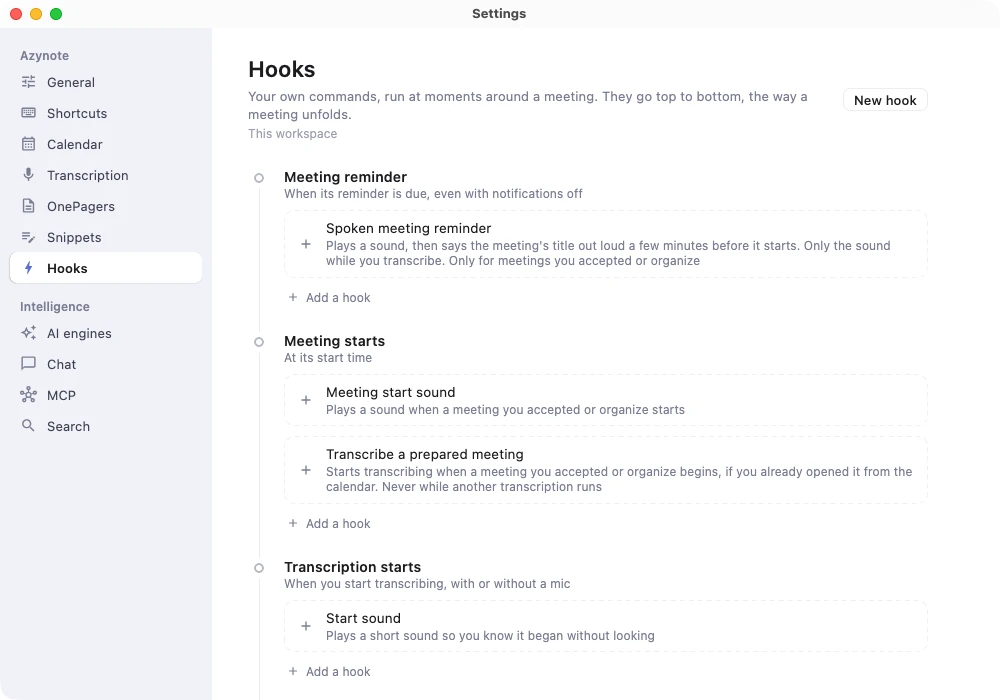
The six events#
| When | Fires |
|---|---|
| Meeting reminder | Once per calendar meeting, when its reminder is due. Uses the same timing as your meeting reminder setting, and fires even if meeting notifications are turned off, so a hook can replace the banner. |
| Meeting starts | Once per meeting, when it starts. |
| Transcription starts | When a transcription starts. |
| Silence while transcribing | Each time the "Did you forget to stop?" reminder appears, meaning nobody has spoken for a few minutes during a transcription. |
| Transcription stops | When a transcription stops. |
| OnePager generated | Once per OnePager the AI writes. |
Events on your Azynote calendar are instructions, not meetings, so they never fire a meeting event (see Scheduled instructions).
The two meeting events run in your workspace folder. The other four run in the session's own folder, so a command like pwd prints that session's folder without you passing anything.
Variables#
Azynote hands your command a few values as variables, depending on the event. Always wrap them in double quotes, like "$AZYNOTE_MEETING_TITLE", not single quotes: single quotes stop them from working. A value is always plain text, so a meeting title someone else wrote can never run as a command of its own.
Every event
| Variable | Value |
|---|---|
$AZYNOTE_CTL | The command line of the Azynote that ran the hook, so a hook can drive it: "$AZYNOTE_CTL" transcription stop |
$AZYNOTE_WORKSPACE_PATH | The workspace's folder |
Meeting reminder and Meeting starts
| Variable | Value |
|---|---|
$AZYNOTE_MEETING_TITLE | The meeting's title |
$AZYNOTE_MEETING_START | Start time, like 14:30 |
$AZYNOTE_MEETING_END | End time, like 15:00 |
$AZYNOTE_MEETING_LOCATION | Its location, empty if none |
$AZYNOTE_MEETING_URL | The video call link from the invite, empty if none |
$AZYNOTE_MEETING_CALENDAR | The calendar it is on |
$AZYNOTE_MEETING_DESCRIPTION | The invite's description as written, empty if none. Very long descriptions are cut after 8,000 characters. |
$AZYNOTE_MEETING_RESPONSE | Your answer to the invite: accepted, organizer, tentative, none (not answered yet) or declined. Empty for an event of your own, unknown when your calendar doesn't say which attendee is you. |
$AZYNOTE_TRANSCRIBING | "yes" while a transcription is running, "no" otherwise |
$AZYNOTE_TRANSCRIBING_SESSION_ID | The session being transcribed, empty when none is |
$AZYNOTE_SESSION_ID | The meeting's session, if you already opened the meeting from the calendar, empty if not |
$AZYNOTE_MEETING_MINUTES | Minutes until it starts (Meeting reminder only) |
Transcription starts, Silence while transcribing, Transcription stops, OnePager generated
| Variable | Value |
|---|---|
$AZYNOTE_SESSION_PATH | The session's folder |
$AZYNOTE_SESSION_ID | The session's id |
$AZYNOTE_SESSION_TITLE | The session's title, empty if it has none |
$AZYNOTE_SUBJECT | The session's subjects, comma-separated |
$AZYNOTE_SILENT_MINUTES | Minutes without anyone speaking (Silence while transcribing only) |
$AZYNOTE_MEETING_ENDED | "yes" once the linked meeting's end time has passed, "no" otherwise (Silence while transcribing only) |
$AZYNOTE_ONEPAGER_PATH | The OnePager just written (OnePager generated only) |
The editor lists the variables for whichever event you have selected, so you always know what a command can use before you write it.
Ready-made examples#
Most events' groups on the Hooks page offer a ready-made example under your own hooks. Click Add on one and it opens in the editor, pre-filled, so you can read it, adjust it, and create it when you are happy with it. Nothing is added until you do.
- Spoken meeting reminder (Meeting reminder): plays a short sound, then says "Heads up, you have [meeting] in [minutes] minutes." If you are already transcribing, you only hear the sound, so the voice stays out of your transcript. It only runs for meetings you accepted or organize.
- Meeting start sound (Meeting starts): plays a short sound when a meeting you accepted or organize starts. To join the call as well, tick Join the call on the meeting alert: Azynote opens the call when you start the session.
- Transcribe a prepared meeting (Meeting starts): starts transcribing when a meeting you accepted or organize begins, if its session already exists because you opened the meeting from the calendar ahead of time. It leaves the meeting alone while another transcription is running.
- Spoken silence nudge (Silence while transcribing): asks "Still there?", or says your meeting has ended, once it has.
- Start sound / Stop sound (Transcription starts / Transcription stops): a short system sound, so you know a transcription began or ended without looking at the screen.
- Write the OnePager (Transcription stops): writes the session's OnePagers once the last of the transcription is done, so they are waiting for you after the call.
A few recipes#
Say the meeting title out loud, a few minutes before it starts
Event: Meeting reminder. Runs until: It finishes on its own.
case "$AZYNOTE_MEETING_RESPONSE" in
  accepted|organizer) ;;
  *) exit 0 ;;
esac
afplay /System/Library/Sounds/Glass.aiff
if [ "$AZYNOTE_TRANSCRIBING" != yes ]; then
  say "Heads up, you have $AZYNOTE_MEETING_TITLE in $AZYNOTE_MEETING_MINUTES minutes"
fi
It only speaks up for meetings you accepted or organize, and plays a sound first so the voice doesn't catch you off guard. While you are transcribing, a spoken line would end up in the transcript, so you only hear the sound.
Open the call automatically when the meeting starts
Event: Meeting starts. Runs until: It finishes on its own.
case "$AZYNOTE_MEETING_RESPONSE" in
  accepted|organizer) ;;
  *) exit 0 ;;
esac
if [ -n "$AZYNOTE_MEETING_URL" ]; then
  afplay /System/Library/Sounds/Ping.aiff
  open "$AZYNOTE_MEETING_URL"
fi
Every meeting runs its hooks, even ones you declined or haven't answered, so this checks your answer first and only opens calls you accepted or organize. The sound comes first, so a window opening on its own never surprises you.
A nudge when the room has gone quiet, that knows if the meeting has ended
Event: Silence while transcribing. Runs until: It finishes on its own.
if [ "$AZYNOTE_MEETING_ENDED" = yes ]; then
  say "Your meeting has ended. Still transcribing?"
else
  say "Still there? Nobody has spoken for $AZYNOTE_SILENT_MINUTES minutes"
fi
Capture the screen for the length of a transcription
Event: Transcription starts. Runs until: Transcription stops.
mkdir -p "$AZYNOTE_SESSION_PATH/screens" && ffmpeg -f avfoundation -i '1:0' -vf fps=1/10 -q:v 2 "$AZYNOTE_SESSION_PATH/screens/img_%03d.jpg"
This needs ffmpeg installed on your Mac first, for example with Homebrew (brew install ffmpeg). The 1 in '1:0' is the screen to capture; ffmpeg -f avfoundation -list_devices true -i "" lists the numbers on your Mac. Because it runs until Transcription stops, it keeps capturing for the whole transcription and stops itself when the transcription does, no separate step needed.
Testing a hook#
Before you save a hook, or any time you are editing one, click Test. Azynote runs the command right away in a scratch folder, with example values standing in for the real ones (a meeting titled "Weekly sync with Acme", and so on), and shows you whether it worked, along with its output. $AZYNOTE_CTL and $AZYNOTE_WORKSPACE_PATH are the real ones, so a test of a hook that drives Azynote really drives it.
For a hook set to run until another event, Test starts it the same way it would run for real, and a Stop button appears so you can end it whenever you like.
Good to know#
-
Declined meetings still run their hooks. Azynote shows no reminder for a meeting you declined, but its hooks still run, with
$AZYNOTE_MEETING_RESPONSEset todeclined, so your command decides what to do with it. -
A spoken reminder is heard by the mic. If a hook speaks during a transcription, that line is picked up like anything else said in the room, so it appears in the transcript, the same as a teammate saying it out loud.
-
The silence nudge closes itself once it speaks. Because your Mac's own voice counts as speech, the "Did you forget to stop?" reminder usually clears itself a few seconds after a spoken nudge plays. With headphones on, nothing plays back through the mic, so it stays until you choose.
-
Hooks run with your permissions. A command runs the same way it would from your own Terminal, so only add ones you understand.
Something else? Write to support@azynote.com.