A meeting is not just what is said. The architecture diagram on the whiteboard, the slide deck someone shared, the CSV of the customer's current stack, the screenshot of the dashboard they are complaining about. All of it belongs with the session.
Drop any file into a session and Azynote keeps it there, right next to your notes and transcript.
Drop files anywhere in the session#
Drag a file from Finder, from a browser, or from any other app onto the session view. While you are dragging, Azynote highlights the drop zone with a blue border and a "Drop files to upload" overlay. Release to add it.
You can drop into:
- The Notes editor area
- Anywhere in the main session pane
- The Mini Player window (for adding files while you are in distraction-free mode)
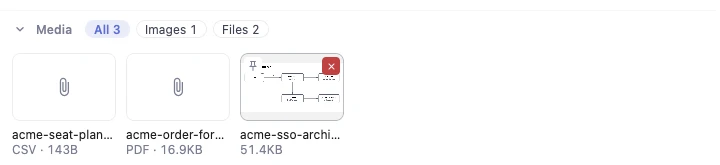
Each file lands in the session's Media strip, under the note. Chips at the top of the strip narrow it to one kind, Images, Audio, Files, Folders or Artifacts, for the kinds the session holds.
What you can drop#
| Category | Formats |
|---|---|
| Images | PNG, JPG, JPEG, GIF, WebP, BMP, TIFF, SVG |
| Audio | WAV, MP3, M4A |
| Video | MP4, MOV |
| Documents | PDF, DOC, DOCX, XLS, XLSX, PPT, PPTX |
| Text & data | TXT, CSV, JSON |
| Archives | ZIP, RAR, 7Z |
| Anything else | imported as a generic file attachment |
Maximum file size per upload is 20 MB.
Audio and video transcribe themselves#
Drop an audio file (WAV, MP3, M4A) or a video file (MP4, MOV) and Azynote runs Whisper on it in the background. A few minutes later, the transcript appears as its own editable tab, right next to the file.
No button to press, no "transcribe this" step. It just happens.
One exception: if a live transcription is running, Azynote queues the dropped file and transcribes it once the live transcription stops. One transcription runs at a time to keep the machine responsive.
Screenshots during a meeting#
This is the most underused capability. When someone shares a diagram, a dashboard, or a slide during a meeting:
- Take a macOS screenshot (Shift+Cmd+4 area, or Shift+Cmd+3 full screen).
- Drag the screenshot thumbnail from the bottom-right of your screen straight into the Azynote session.
- The image is now part of your session.
When you generate a OnePager, Azynote sends the screenshot to the AI engine as visual context. Your OnePager can then reference "the architecture diagram presented" or "the dashboard they showed" accurately, instead of asking you to describe it in words.
Per-asset controls#
- Click a card to open the file in the app your Mac uses for it. An artifact, or an HTML page you dropped, opens as an artifact.
- Point at a card and two buttons appear:
- The pin, top left, pins the file to the session's OnePager (see Pin media to the OnePager).
- The ×, top right, deletes the file from the session. Azynote asks first.
- Audio that is not transcribed yet also shows Transcribe on hover.
The file name is set at upload time and stays as-is. If you drop two files with the same name, Azynote adds a -1, -2 suffix to avoid conflicts.
Reference an asset from a note#
Type @ in any note in the session to insert a link to one of its assets, matched on any part of the filename. Put your cursor in the link and the media strip highlights the file it points at, so you can see which one it is while you keep writing.
A reference points at the file rather than moving or copying it, so one asset can be referenced from as many notes as you like. Delete the asset and the links stay behind, struck through in red so you can see they no longer resolve. See the Editor for the details.
Good to know#
- Session-scoped: you have to be inside a session to drop files. Dropping on the workspace dashboard does not attach anywhere.
- Hidden files are skipped: anything starting with
.is ignored. - Mini Player works as a drop zone: you do not have to leave focus mode to add a file.