Plug external MCP servers into Azynote so the chat can use them.
Plenty of MCP servers already exist. GitHub, Brave Search, filesystem browsers, web scrapers, Slack, Notion, and more. When you connect one of them to Azynote, its tools become available to Azynote's agent during chat. Ask "pull the last three issues I opened on GitHub" and Azynote uses the GitHub MCP server to get them.
If you want to go the other way and expose Azynote's data to Claude Desktop or Cursor, see MCP Server.
Add a server#
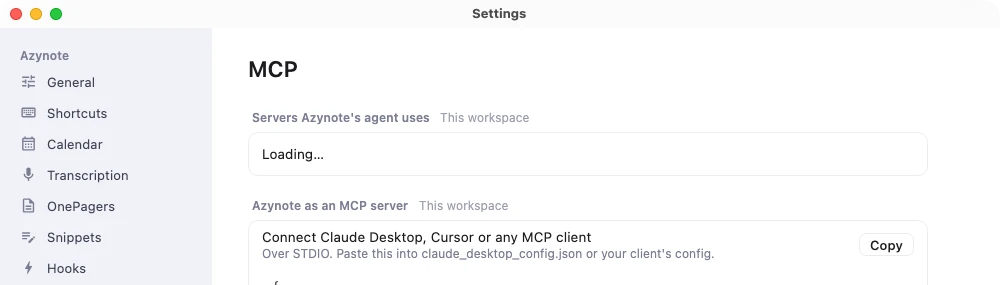
- Open Settings > MCP.
- Turn on Use MCP servers.
- Click Add a server next to Servers Azynote's agent uses.
- Fill in the form:
- Server name (for example,
github). It cannot be changed later. - Description (optional)
- Transport: pick Stdio (runs a local command) or HTTP (connects to a URL)
- For Stdio: the Command to run (for example
npx) and its Arguments, separated by spaces (for example-y @modelcontextprotocol/server-github) - For HTTP: the HTTP URL and the Authentication (None or OAuth 2.0)
- Timeout (ms) (default: 30000, that is 30 seconds)
- Allowed tools: an optional comma-separated list. Leave it empty to expose every tool from that server.
- Server name (for example,
- Click Save.
- On the new server's row, click Test. Azynote starts the command or reaches the URL and shows how many tools are available, or why the connection failed.
See it working#
Each server you add appears as a row under Servers Azynote's agent uses, with:
- Its description, how it connects (for example "Stdio: npx" or "HTTP: http://localhost:3000/mcp"), and its allowed tools if you set any
- Test, which becomes Cancel test while it runs, and the result underneath: "12 tools available" or "Connection failed" with the reason
- Edit, and a trash icon to remove it (Azynote asks first, and removes its sign-in too)
- A switch to turn it on or off
- For OAuth servers, its sign-in state and button (see below)
Servers that are off stay in the list but are not started.
When changes apply. Adding, editing, removing or switching a server, or signing in or out, reaches the chat on your next message and OnePager generation on its next run. No restart needed.
Tools become available automatically#
Once a server is on, Azynote's agent can use its tools in chat and while generating OnePagers, without any extra step. Tools are namespaced by server to avoid collisions: a GitHub MCP server's create_issue tool appears to the agent as github_create_issue.
You do not call tools directly. Ask the chat a question in plain language and the agent decides which tool to use and when.
These servers are for Azynote's built-in agent (Gemini, OpenAI or Local). When Chat, OnePagers or the Command Panel run on an external agent (ACP or CLI), that agent loads MCP servers from its own configuration instead, and the page says so. To use a server there, add it to the agent and sign in from the agent.
Sign in to an HTTP server#
Some HTTP MCP servers require OAuth. Pick OAuth 2.0 as the server's Authentication, save, then:
- Click Sign in on the server's row. Azynote opens your browser.
- Sign in on the provider's page and grant access.
- Azynote receives a token and stores it inside your workspace.
- The row shows Signed in.
When the row shows Sign-in expired, click Sign in again. Revoke removes the stored token.
Good to know#
- Workspace-scoped. Your servers and their sign-ins live in the current workspace. Different workspaces can have different servers.
- Stdio servers run commands on your Mac. Adding a server means giving it permission to run its command with its arguments. Only add servers from sources you trust.
- External runtimes are your responsibility. Many MCP servers need Node.js, Python, or other tools to be installed. If Test reports that the command was not found, install the prerequisite and try again.
- Tool filtering. Use Allowed tools to restrict a server to a safe subset, for example only read-only operations.